Appearance
Formatting
The preview renders headings, lists, task lists, tables, callouts and fenced code. For a long time nothing in the app would write any of them, so you typed the syntax from memory or you went without. Now every construct has a command, and there are three ways to reach it.
| Surface | Best for |
|---|---|
| The Format menu | Finding out what exists |
| The toolbar | Writing markdown without knowing markdown |
| The slash menu | Knowing the syntax and not wanting to count pipes |
They're one set of commands underneath. A toolbar click and a menu click run exactly the same code, so nothing behaves differently depending on how you got there.
The toolbar
Off by default. Turn it on in Settings → General → Formatting toolbar.
A fresh install also asks, the first time you open a vault:
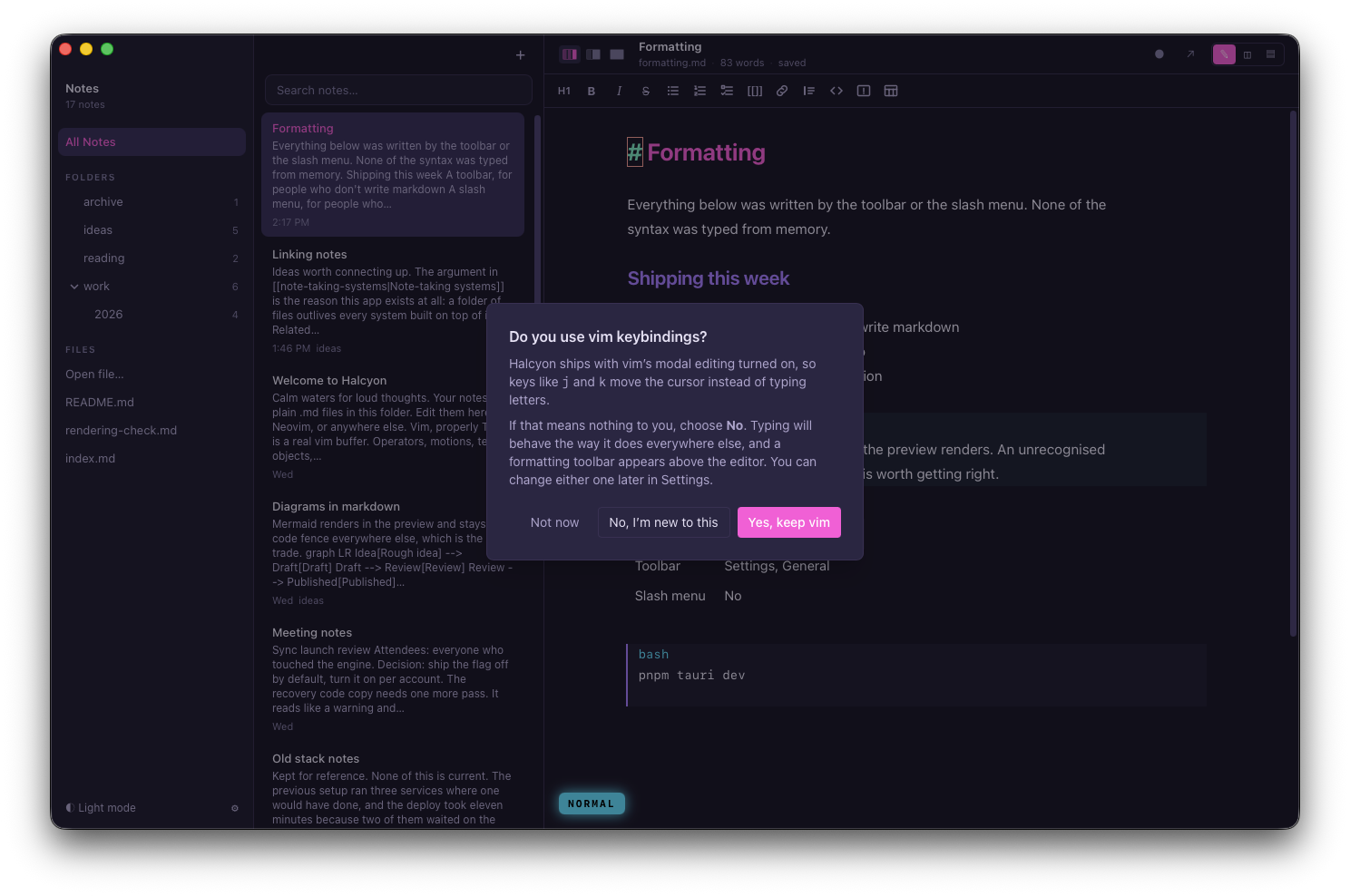
One question, two settings. Yes, keep vim leaves things as they ship: vim on, no toolbar. No, I'm new to this turns vim off and the toolbar on together, because they're the same question asked twice. Not now changes nothing and doesn't ask again.
If you've been using Halcyon for a while you'll never see it: the question is for installs that have no settings yet, not for people who already made these choices. Halcyon → Run First-Time Setup… brings it back.
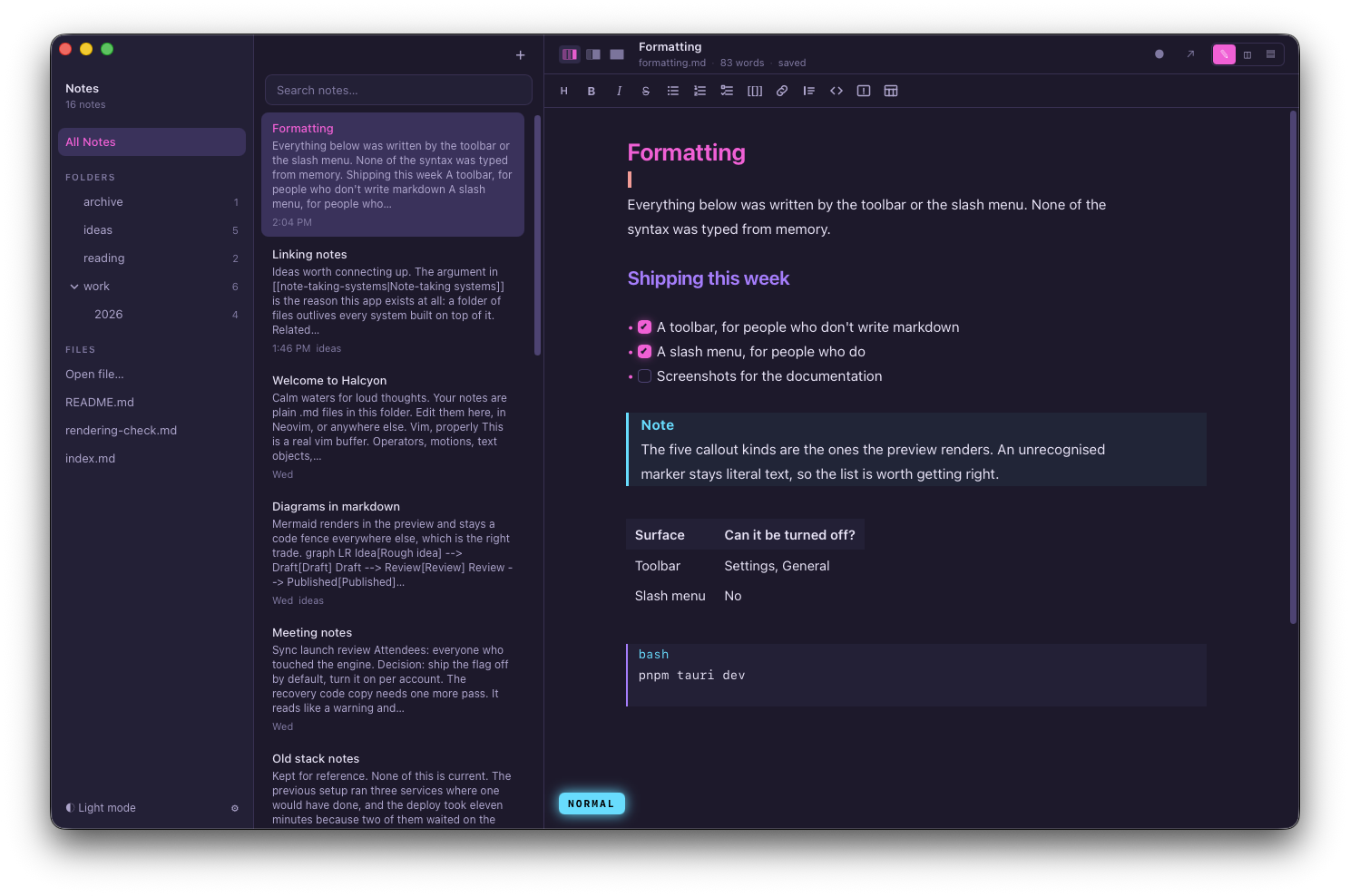
Thirteen buttons, left to right:
| Button | What it does |
|---|---|
| H | Cycles the line's heading level: #, ##, ###, then back to plain |
| B / I / | Bold, italic, strikethrough |
| Bulleted, numbered, checklist | The three list kinds |
[[]] | Link to a note, opening the same picker [[ opens |
| Chain link | A markdown link to a URL |
| Quote bar | Prefixes the line with > |
</> | A fenced code block |
| Callout | Opens a menu of the five kinds |
| Table | A 3-column, 2-row table |
The H button names the level it's currently on, so a line that's already an H2 draws H2 rather than a bare H.
Four things about it worth knowing:
- It never takes focus from the editor. Your selection survives the click, and with vim on you stay in whatever mode you were in.
- It drops you into insert mode when there's something to type. Clicking Table or Callout leaves a cursor sitting in an empty cell, so vim switches to insert. Wrapping selected text in bold doesn't, because there's nothing waiting to be filled in.
- It's gone in preview. The toolbar belongs to the editor pane, so ⌘E into preview takes it with it.
- Narrow the editor and buttons fold away. Table, callout, code block and strikethrough go first, into a More formatting menu at the right end. The first three are what the slash menu reaches anyway, and strikethrough has a chord. Headings, emphasis and the lists are the last to go.
The slash menu
Always on, with no setting, because a trigger you have to type has nothing to turn off. Type / at the start of a line:
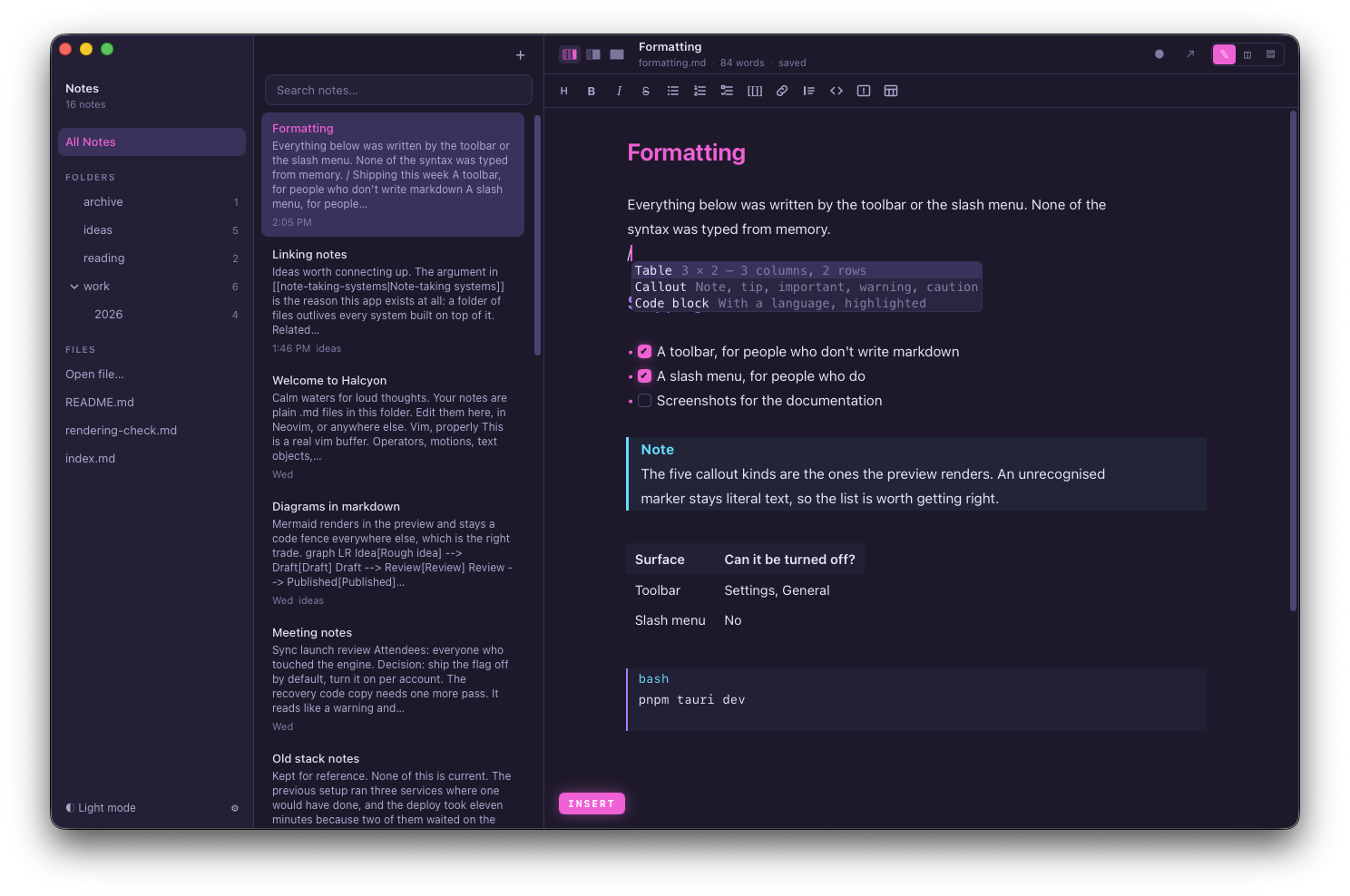
Three constructs, and they're the three whose structure is tedious to type: a table means counting pipes, a callout means remembering that it's [!IMPORTANT] and not [!INFO], and a fence means knowing the language tag.
| Type | What it does |
|---|---|
/table | Inserts three columns and two rows |
/callout | Asks which of the five kinds, then inserts it with the cursor on the body line |
/code | Asks for a language, then inserts a fence tagged with it |
↵ or ⇥ picks the highlighted entry; the arrow keys move between them.
Only Table inserts on the first ↵. Callout and Code block have a second question with a knowable answer, so they ask it rather than making you know it: picking either one leaves /callout or /code on the line and offers the answers straight away.
Saying more after the command
You can also type the answer yourself. A space after the command is what asks the next question, whether you typed it or picking the row did.
/table 4 3 takes columns first, rows second, and shows you what it'll build before you commit:
/table 4 3
Table   4 × 3: 4 columns, 3 rows
Numbers you leave out fall back to the default, and anything that isn't a number is ignored, so /table 5 is five columns and two rows.
/callout warning filters the five kinds as you type:
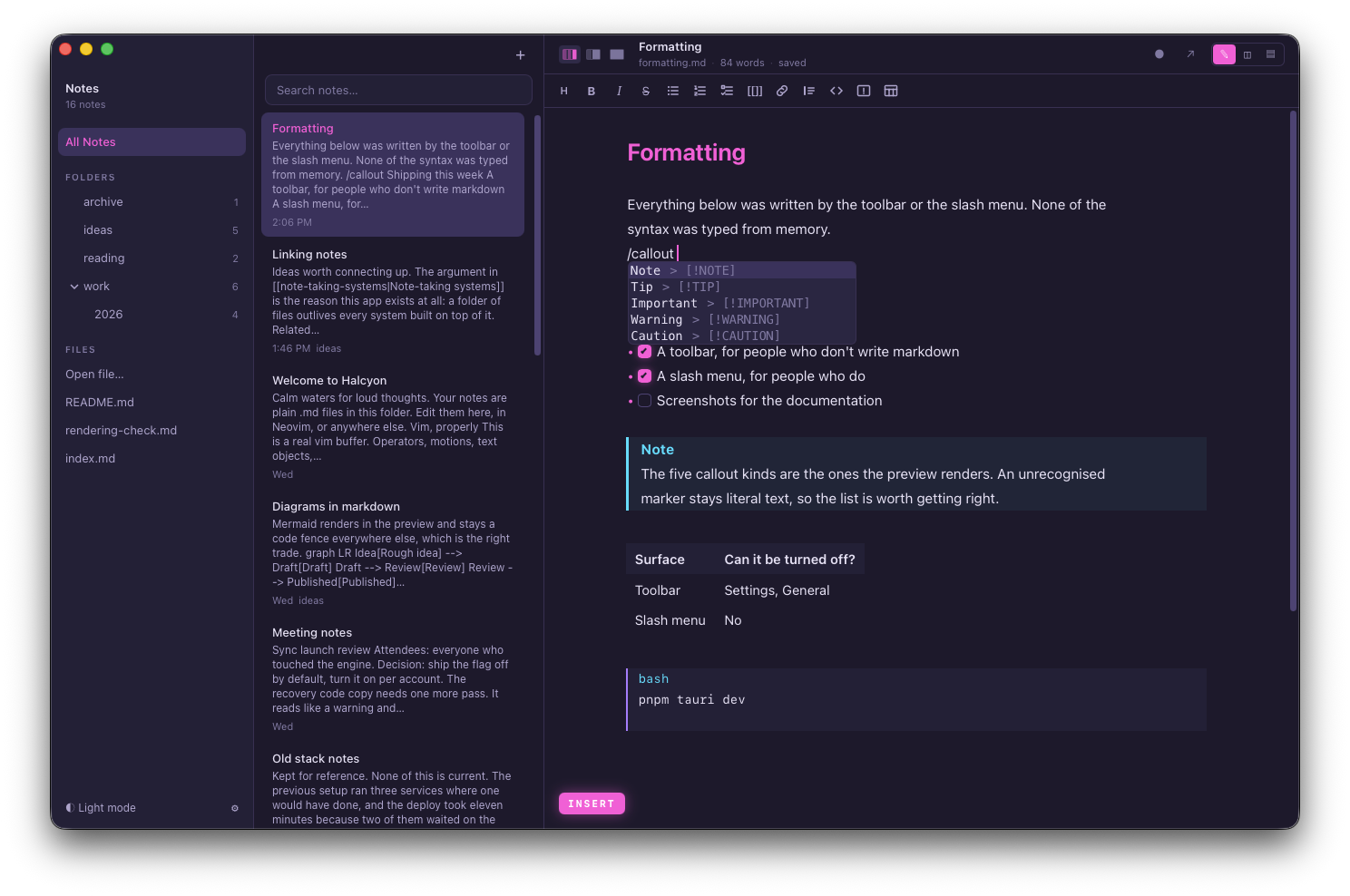
/code julia filters every language the editor can highlight. The list comes from the editor's own language data rather than a list Halcyon keeps, so nothing is offered that would come out unhighlighted.
When it doesn't fire
- Only at the start of a line. Indentation counts as the start, so a line inside a list or a quote works.
- Never inside code. A
/in a fenced block or inline code is just a slash. - A second slash cancels it, which is what keeps
/usr/local/binfrom opening a menu halfway through. - Nothing is inserted until you pick. Dismiss the menu and the line still holds the literal text you typed, for you to delete like any other.
Note
With vim on, Esc closes the menu and leaves you in insert mode. A second Esc is what returns you to normal. That's deliberate: one key doing both would make dismissing a menu cost you your mode.
In normal mode, / is still vim's search. The menu belongs to insert mode, where a / is a character you're typing rather than a command.
The Format menu
Everything above, named and in one place, whether or not the toolbar is showing:
Bold                  ⌘B
Italic                ⌘I
Strikethrough        ⌘⇧X
─────────────────────────
Cycle Heading Level
Bulleted List
Numbered List
Checklist
Block Quote
─────────────────────────
Link…                ⌘⇧K
Link to a Note…
Table
Callout
Code Block
The chords are printed as part of each item's label rather than registered as menu key equivalents. That's on purpose: a menu key equivalent can't stand down when focus is somewhere the key means something else, and these four only mean anything inside the editor.
The palette (⌘K) has the same commands, and searches their synonyms: admonition finds Callout, todo finds Checklist, fence finds Code Block.
Chords, and why there are only four
| Keys | What it does |
|---|---|
| ⌘B | Bold |
| ⌘I | Italic |
| ⌘⇧X | Strikethrough |
| ⌘⇧K | Insert link |
The other nine commands have no chord on purpose. Each already has four ways in, and inside the editor a chord is never free: CodeMirror answers a key and the app's own handler still sees it, so a badly chosen one fires twice and does two things. Four inline marks are worth that risk. Block Quote isn't.
With vim on, <Space>*, <Space>i and <Space>k are bold, italic and link from normal and visual mode, so you can select and wrap in one gesture.
What each command writes
| Command | Behaviour worth knowing |
|---|---|
| Bold, italic, strikethrough | Toggle. Running one on text that already has the markers takes them off |
| Heading | Reads the first selected line and cycles from there. A hand-typed #### steps to plain text rather than to ##### |
| The three lists | Replace each other rather than nesting, so bullet to checklist is one click. Numbering is positional: three lines are always 1. 2. 3. |
| Checklist | The box it draws is live. Click it in the editor to tick it, without moving your cursor off whatever line you were on |
| Block quote | Adds > without disturbing anything else, because > - item is legal markdown |
| Link | With text selected, the cursor lands in the URL slot. With nothing selected, it lands in the label. On a link that already exists, it selects the URL rather than nesting a second link |
| Link to a note | Inserts [[]] and opens the note picker |
| Table, callout, code block | Land on a line of their own, reusing the current line if it's empty |
| Code block | From the toolbar or the Format menu it has no language, so the cursor lands on the info string rather than in the body |
Headings, lists and quotes apply to every line your selection touches. Tables, callouts and code blocks land once, where the cursor is. All of them are ordinary edits, so ⌘Z takes any of them back.