Appearance
Keyboard shortcuts
Press ⌘⇧/ (that's ⌘?) in the app for the complete list. It's generated from the same table the key handler reads, so it can't fall out of step with what the keys actually do.
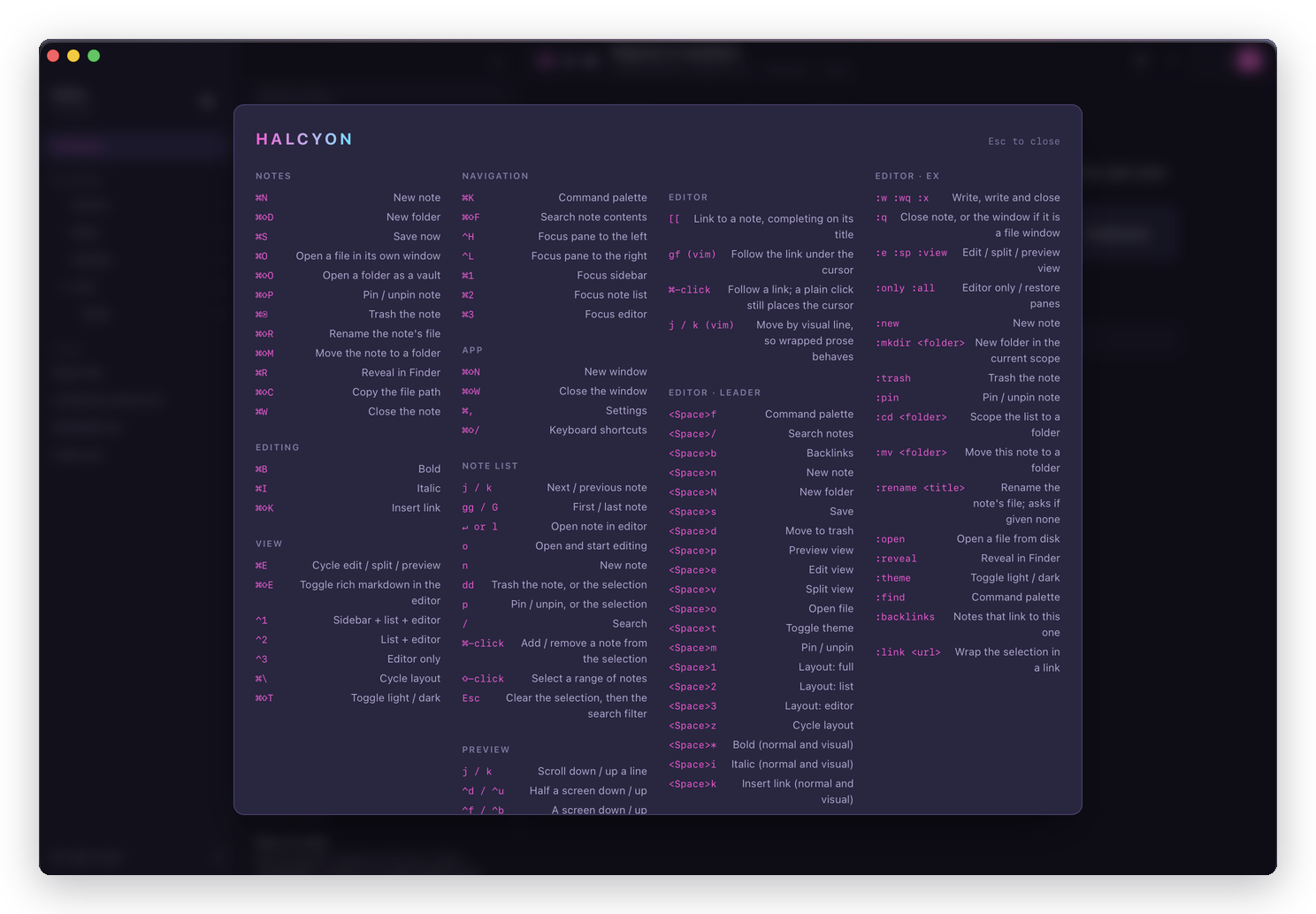
This page covers the same ground for reading away from the app. Where the two disagree, believe the app: shortcuts are remappable, and a new one can land in a release before this page catches up.
Worth memorising first
| Keys | What it does |
|---|---|
| ⌘K | Command palette. Everything is in here |
| ⌘N | New note, asking for the title and optionally a folder |
| ⌘⇧F | Search note contents |
| ⌘E | Cycle edit / split / preview |
| ⌘, | Settings, including remapping any of these |
| ⌘⇧/ | This list, in the app |
Notes
| Keys | What it does |
|---|---|
| ⌘N | New note |
| ⌘⇧D | New folder |
| ⌘S | Save now |
| ⌘O | Open a file in its own window |
| ⌘⇧O | Open a folder as a vault |
| ⌘⇧P | Pin or unpin the note |
| ⌘⌫ | Delete the note |
| ⌘⇧R | Rename the note's file |
| ⌘⇧M | Move the note to a folder |
| ⌘R | Reveal in Finder |
| ⌘⇧C | Copy the file path |
| ⌘W | Close the note |
| Duplicate the note (no chord: see below) | |
| Browse the note's versions (no chord) | |
| Rebuild the index (no chord: see below) |
View
| Keys | What it does |
|---|---|
| ⌘E | Cycle edit / split / preview |
| ⌘⇧E | Toggle rich markdown in the editor |
| ⌘+ | Zoom in |
| ⌘- | Zoom out |
| ⌘0 | Actual size |
| ⌃1 | Sidebar + list + editor |
| ⌃2 | List + editor |
| ⌃3 | Editor only |
| ⌘\ | Cycle layout |
| ⌘⇧T | Toggle light / dark |
Edit / split / preview view directly (no chord: ⌘E cycles, and :e :sp :view set) |
Navigation
| Keys | What it does |
|---|---|
| ⌘K or ⌘P | Command palette |
| ⌘⇧F | Search note contents |
| ⌘1 | Focus the sidebar |
| ⌘2 | Focus the note list |
| ⌘3 | Focus the editor |
| ⌃h | Focus the pane to the left |
| ⌃l | Focus the pane to the right |
| Find in Vault (no chord: see below) | |
| Open / close the results pane (no chord: see below) |
App
| Keys | What it does |
|---|---|
| ⌘⇧N | New window |
| ⌘⇧W | Close the window |
| ⌘, | Settings |
| ⌘⇧/ or ⌘⇧? | Keyboard shortcuts |
| Check for updates (no chord) | |
| Install the command line tool (no chord) |
Quick capture
Different from everything above: this one chord works from any app, not only while a Halcyon window has focus. It ships with no default, since a default chord could collide with a shortcut some other app already uses. Bind it yourself in Settings → Keybindings. See Quick capture.
Editing
These belong to the editor rather than to the app, so they only fire with the editor focused and they can't be remapped in Settings.
| Keys | What it does |
|---|---|
| ⌘B | Bold |
| ⌘I | Italic |
| ⌘⇧X | Strikethrough |
| ⌘⇧K | Insert link |
| Headings, lists, quotes, tables, callouts, code blocks (no chord: see Formatting) |
In the editor
| Keys | What it does |
|---|---|
[[ | Link to a note, completing on its title |
/ | At the start of a line, insert a table, callout or code block |
gf | Follow the link under the cursor |
| ⌘-click | Follow a link. A plain click still places the cursor |
j k | Move by visual line, so wrapped prose behaves |
/ opens that menu only while you're typing into a line. In vim's normal mode it's still search, and in the note list it jumps to the search box.
In preview
| Keys | Scrolls |
|---|---|
j k | A line |
| ⌃d ⌃u | Half a screen |
| ⌃f ⌃b | A screen |
In the sidebar
There's no separate cursor here: the keys move which folder the note list is scoped to, the same way clicking a row does, and every action below acts on that folder. All Notes counts as a row too, at the top.
| Key | What it does |
|---|---|
j k | Down, up |
gg G | All Notes, last folder |
o | Expand or collapse |
n | New note here |
N | New folder here |
r | Rename the folder |
m | Move the folder |
dd | Delete the folder |
In the note list
| Key | What it does |
|---|---|
j k | Down, up |
gg G | First, last |
dd | Delete the note |
p | Pin or unpin |
n | New note |
/ | Jump to the search box |
↵ l | Open the note and focus the editor |
o | Open it and start in insert mode |
Esc | Clear the selection, then the search |
In the editor
<Space> is the vim leader. The full leader table and every ex command are on the Vim page.
<Space>f  palette      <Space>e  edit view      <Space>o  open file
<Space>/  search       <Space>v  split view     <Space>t  toggle theme
<Space>n  new note     <Space>p  preview view   <Space>m  pin / unpin
<Space>N  new folder   <Space>1 2 3  layouts    <Space>b  backlinks
<Space>s  save         <Space>z  cycle layout   <Space>*  bold
<Space>d  delete                                <Space>i  italic
                                                <Space>k  insert link
Shortcuts that don't exist, and why
Duplicate has no chord. The obvious one is ⌘D, and the editor already uses that to add a cursor at the next occurrence of your selection. Duplicate lives in the menu, the palette and the right-click menu instead.
Browse Versions has no chord. Rarely enough reached that it doesn't earn one of the few ⌘ combinations left. It's in the File menu and the palette.
Recover Displaced Notes has no chord, for the same reason. File menu and palette. See Getting a note back.
Rebuild the index has no chord. It's the escape hatch for forcing a rescan rather than trusting the watcher caught everything, and most people never need it. Reach it from the File menu or the palette. See Notes and folders.
Find in Vault and the results pane have no chord, for the reason Browse Versions doesn't: reached a few times a session, and every chord left costs something else its shortcut. Find in Vault is in the Edit menu and the palette; opening and closing the pane are in the Go menu and the palette. See Walking every place a phrase appears.
Most formatting commands have no chord. Bold, italic, strikethrough and link do; headings, lists, quotes, tables, callouts and code blocks don't. Each of those is already reachable four ways, and inside the editor an extra chord risks firing twice. See Formatting.
Note
⌃h stops working while you're in vim's insert mode, where it has to stay backspace. ⌘1 to ⌘3 reach the panes with no such exception.
Remapping
Settings → Keybindings, ⌘,. The recorder captures a real key event, so what you press is what gets bound, and it refuses to shadow a command that already owns that chord.
Vim's own bindings, the note list's keys, and the sidebar's keys aren't in that list: they belong to the editor, the list and the sidebar rather than to the global handler. See Settings.