Appearance
Turning Sync on
Three steps, and the third one is a decision rather than a step.
1. Sign in
Open Settings → Sync (⌘,) and press Sign in….
Halcyon hands the sign-in to your default browser and waits. Your browser holds the session, so passkeys and whatever else guards your account work exactly as they do on the website, and the app never sees a password.
When you finish, the browser hands the result back to Halcyon and the Settings pane fills in with your account.
If you don't finish in the browser, nothing happens and the button is still there when you come back. Settings shows Waiting for your browser… until you dismiss it, and dismissing it changes nothing: a second Sign in… starts a clean attempt.
Important
Accounts are invite-only at the moment, and the gate is in the browser rather than in the app. Without an invitation the sign-in page is where you'll be told so, and Halcyon itself will just sit at Waiting for your browser… having been told nothing. That's the same thing it does when you close the tab, so don't read it as a failure on this Mac.
Note
Signing in doesn't sync anything by itself. It gives the app an account; the next step is what activates a vault.
2. Turn on the vault
Two places, same switch: the toggle beside the vault's name in the sidebar, or Sync this vault in Settings → Sync.
Either one asks for a name for the remote copy:
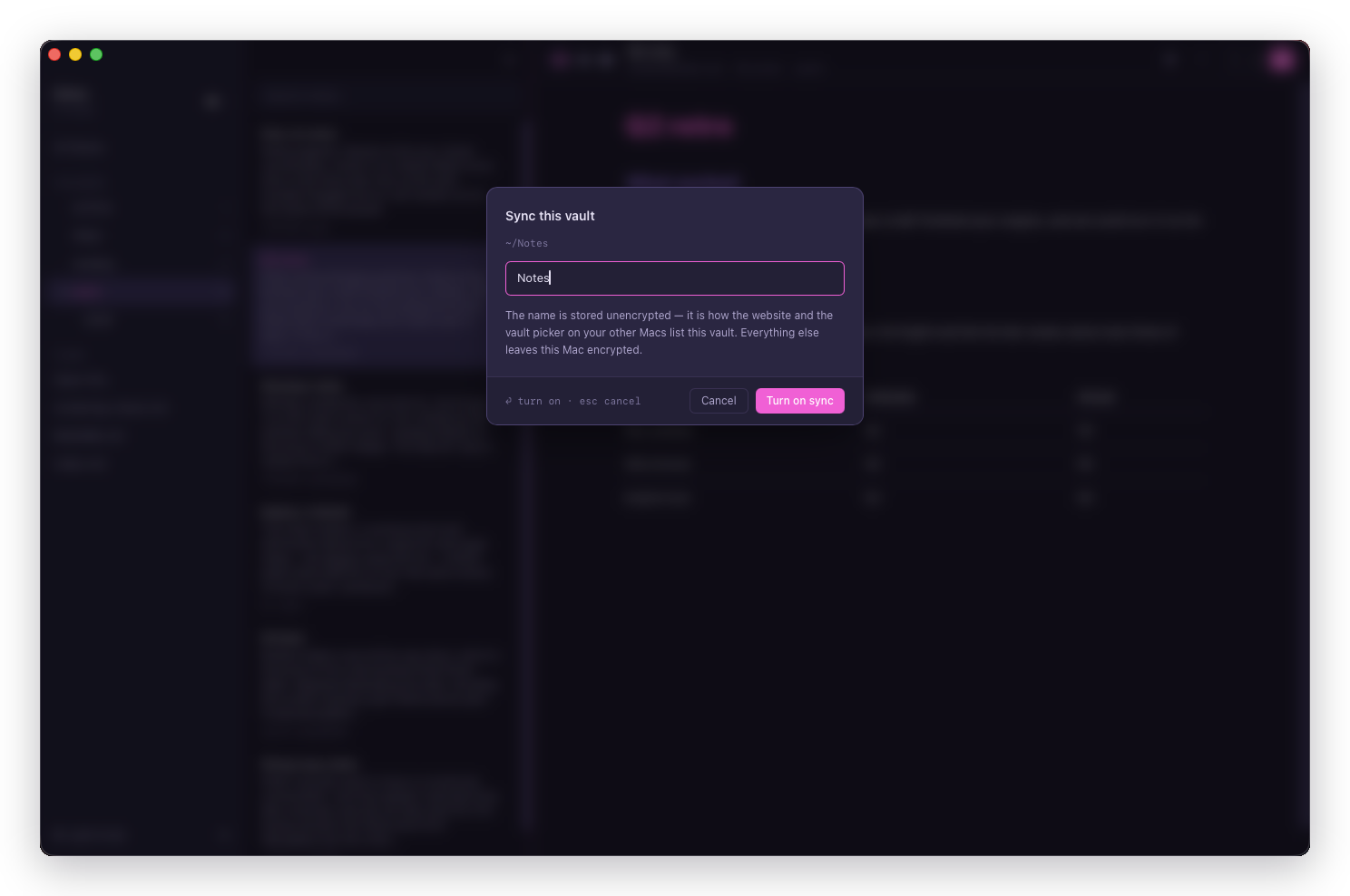
The name is stored unencrypted. It is how the website and the vault picker on your other Macs list this vault. Everything else leaves this Mac encrypted.
Press Turn on sync and the first upload starts. The status line under the vault's name reports it, and a large vault's first pass is the one wait long enough to get a count:
first upload: 128 notes leftAfter that the line settles to synced, and stays quiet. See When Sync goes wrong for the full vocabulary.
3. The recovery code
Turning sync on offers you a recovery code, and the offer is worth reading rather than clicking through:
A recovery code is the one way into your synced notes if every enrolled Mac is ever lost. It is generated, shown once, and never stored anywhere it can be read again.
The code is generated, never chosen by you, and shown exactly once. Write it down somewhere that isn't a Mac.
Caution
Paper beats a file. Anything that can read the code can open every synced vault on the account, so a note-to-self in a password manager is a reasonable choice and a text file on your desktop is not.
Declining is a real answer. The button says No code, I accept that, and nothing nags you about it afterwards. It means accepting that losing every enrolled Mac loses the remote copy for good.
Setting or rotating one later
Settings → Sync has a Recovery code row that reads its current state:
| The row says | Meaning |
|---|---|
| Not set | Losing every enrolled Mac would lose the remote copy for good |
| Set date | Rotating replaces it, and the old code stops working |
Rotating replaces the code the moment the new one exists. The old code stops opening anything immediately, so don't rotate until you're ready to write the new one down.
Turning it off
Flip the same toggle. Halcyon asks first:
The engine stops and every note stays on this Mac exactly as it is. The remote copy is kept too: deleting it is a password-confirmed action on the website, not something this app can do. Turning sync back on picks up where it left off.
Nothing local moves, nothing local is deleted, and nothing needs re-uploading if you change your mind.
Signing out
Sign out in Settings → Sync forgets the credential on this Mac.
Important
Signing out revokes nothing on the server, because there's nothing to call. To cut a Mac's access off for real, remove it on the website's device page. Settings links straight to it.
Next
Adding another Mac is where the vault becomes useful.