Appearance
Notes and folders
A note is a file, and its path is its identity. Renaming a note renames the file. Moving it moves the file. There's no database row that survives independently of what's on disk.
Making a note
⌘N asks for the title, and the title becomes the filename: Halcyon Sync gives you halcyon-sync.md.
Type a path and you place it at the same time:
work/2026/Rust CLI → work/2026/rust-cli.mdFolders in the path are created if they don't exist, parents included.
A note started without a title is untitled.md, and it names itself after its first heading when the editor loses focus. That's what <Space>n and the sidebar's New Note do.
Important
Automatic naming only applies while a note is still untitled.md. Once a file has a name, that name is yours. Rewrite the heading of 2026-08-01.md to # Daily log and the filename stays 2026-08-01.md.
Clicking away is the worst possible moment to rename a file: it's usually the click that goes to a terminal, where the note may be open in Neovim on the old path. A file that renamed itself under you there would end up as two files. ⌘⇧R is the only thing that renames a note once it has a name.
The cost is drift: rewrite a heading and the filename lags until you ask. That trade is on purpose. 2026-08-01.md holding # Daily log is an arrangement you chose, and correcting it would be vandalism.
Acting on a note
| Keys | What it does |
|---|---|
| ⌘⇧R | Rename the file |
| ⌘⇧M | Move it to another folder |
| ⌘⇧P | Pin or unpin |
| ⌘R | Reveal in Finder |
| ⌘⇧C | Copy the file path |
| ⌘⌫ | Delete it |
Right-clicking a row in the list gives you the same set plus Duplicate.
Note
Duplicate has no keyboard shortcut. The obvious one is ⌘D, and the editor already uses that for multi-cursor editing. Duplicate lives in the menu, the palette and the right-click menu instead.
Moving
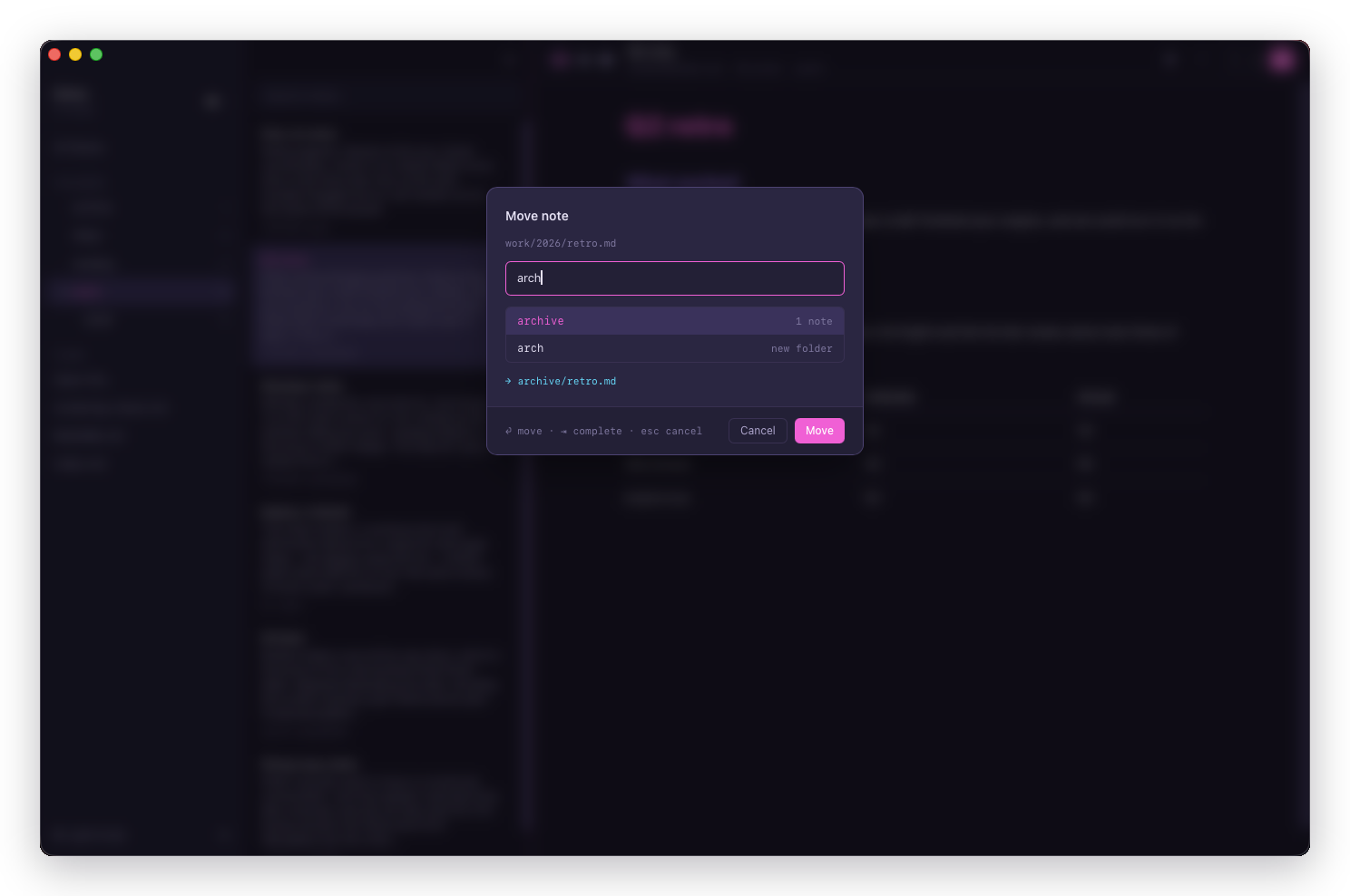
The move dialog completes against the folders you already have, matching anywhere in the path, so typing 2026 finds archive/work/2026. Type a folder that doesn't exist and it's created, parents included. ~ means the vault root.
You can also drag notes onto a folder in the sidebar.
Every move arms an Undo on the status message, because a drag is easy to do by accident in a way that ⌘⇧M never was. An undo of a batch move returns each note to the folder it came from, even when they came from three different folders.
Warning
Moving a file breaks a Neovim buffer open on it. Neovim holds the old path, so its next :w writes the note back at the address you moved away from, leaving you two copies: the one Halcyon shows, and the one Neovim just recreated with your edit in it.
Halcyon can't see another editor's buffers, so it can't prevent this. What it does is refuse to let it be silent. It remembers what this window moved, and a file reappearing at one of those paths raises a notice naming both copies instead of quietly indexing a second note.
Selecting several notes
Three gestures on a row:
| Gesture | What it does |
|---|---|
| Click | Opens the note |
| ⌘-click | Adds it to the selection without opening anything |
| ⇧-click | Takes a range |
The open note and the selection are two different highlights, and every note action has two forms.
Aimed at a row (the right-click menu, and ⌘⌫ on a row) means the selection only when that row is in the selection. That's Finder's rule, and it's what stops right-clicking an unpicked note from deleting five others.
Aimed at nothing (the menu bar, the ⌘K palette, dd in the list) means the selection outright, falling back to the open note when nothing is picked.
Typing in the search box drops the selection. Narrowing hides rows, and a selection that outlived it would act on notes nothing on screen mentions.
Folders
The sidebar's tree is the directory tree on disk. It's read fresh rather than stored, so mkdir in a terminal shows up, and a folder with nothing in it yet is still a folder. Only the note count beside each name comes from the index.
⌘⇧D makes a folder. :mkdir work/2026 does the same from the editor, creating both levels.
Right-clicking a folder gives you New Note, New Folder…, Expand or Collapse, Rename…, Move… and Delete.
Renaming or moving a folder takes every note inside it along. If one of those notes is open, the editor follows it to the new path with your cursor and undo history intact: it's the same buffer at a new address, not a new file.
Deleting a folder permanently removes it and every note inside it, all at once. Confirm before delete (see below) covers folders the same way it covers notes, so it asks first.
Rebuilding the index
The note counts and search results you see come from an index Halcyon builds from your files, not from the files themselves, and it's always safe to throw away and rebuild: the app watches your vault and keeps it up to date on its own.
If you've made changes outside the app that a watcher might have missed, like restoring a folder from a backup or running a sync tool against the vault while Halcyon was closed, force a rescan from the command palette or File → Rebuild Index.
Pinning
Pinned notes sort to the top of the list. ⌘⇧P, p in the list, <Space>m in the editor, or :pin.
Note
Pins are the one thing Halcyon stores only in its own database rather than in your files, so they're specific to the Mac you set them on. They survive the index being deleted and rebuilt. They don't travel between Macs, even with Sync on.
Deleting
Deleting a note erases it from the vault immediately. It doesn't go to the macOS Trash, and there's no Put Back.
It disappears from the list and from disk in the same instant - there's no staging step in between.
If the vault syncs, the note isn't gone for good: older versions live in the server's history, and you can recover one from there. See What Halcyon Sync is.
Settings → General has a Confirm before delete switch, on by default, for the moments a keystroke gets ahead of you.