Appearance
The three panes
Halcyon's vault window is three columns: sidebar, note list, editor. The model is Bear's, and so is the collapsing.
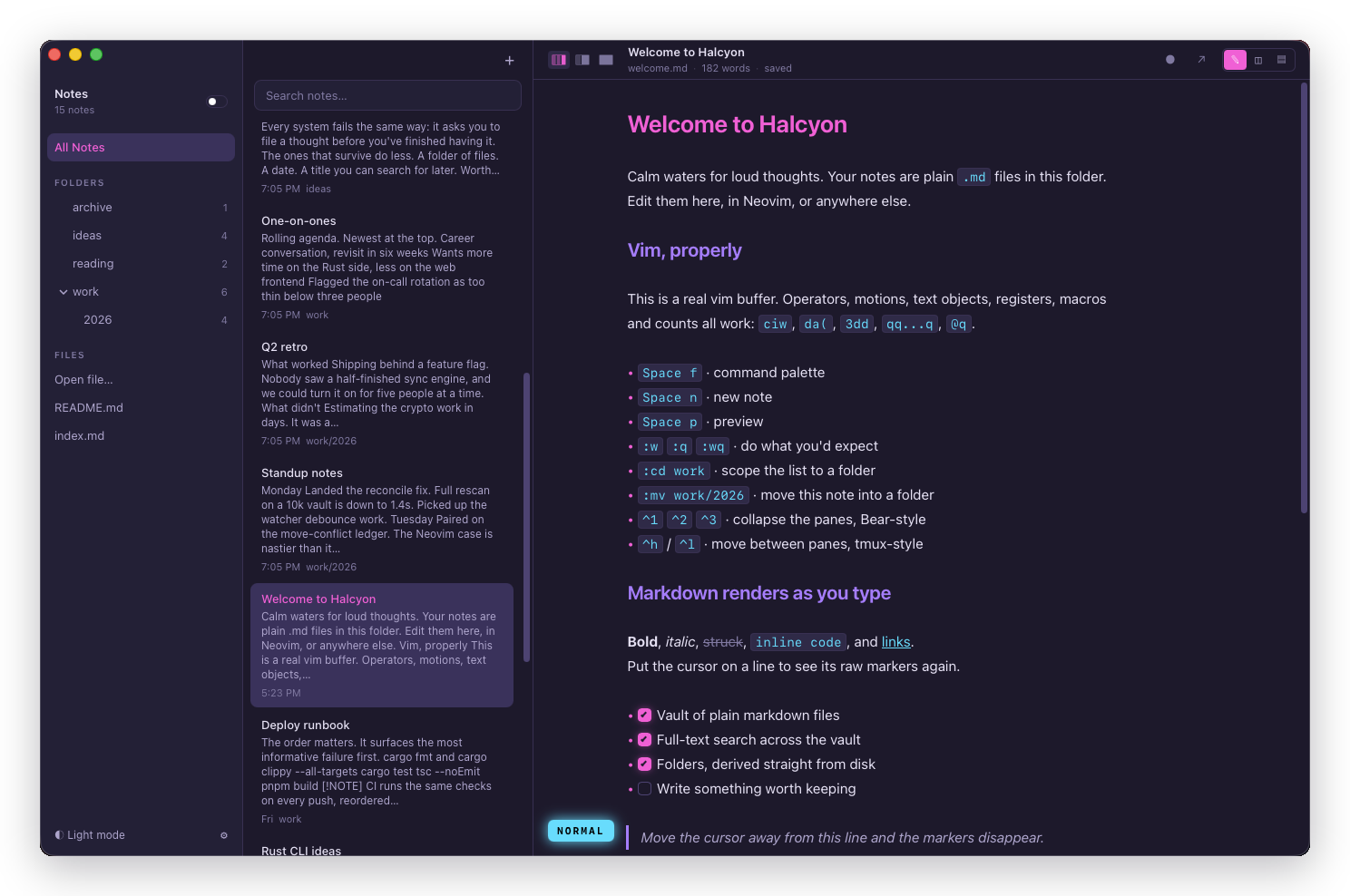
What's in each
The sidebar is where you narrow. It holds the vault's name at the top, then:
- All Notes, which clears any folder scope.
- Folders, the directory tree on disk, with a note count beside each. Click one to scope the list to it. Empty folders appear too, because the tree is read from disk rather than derived from where notes happen to be.
- Files, an Open file… button and the single files you opened recently. Those open in their own windows rather than joining the vault.
- Settings at the bottom, ⌘,.
The note list shows the notes in whatever you've scoped to, with a title, an excerpt, and a search box at the top. It's modal: j and k move, ↵ opens. See Finding things.
The editor holds the open note. It can show the markdown, a rendered preview, or both at once. See The editor. A row of formatting buttons can sit above it, off by default and switched on in Settings: see Formatting.
Collapsing panes
| Keys | Layout |
|---|---|
| ⌃1 | Sidebar + list + editor |
| ⌃2 | List + editor |
| ⌃3 | Editor only |
| ⌘\ | Cycle through the three |
Inside the editor with vim on, <Space>1, <Space>2, <Space>3 and <Space>z do the same four things, and :only and :all are the ex commands for editor-only and everything-back.
Collapsing is progressive: panes drop from the left, so the editor is the one you always keep.
Moving focus
Two ways, and they mean different things.
Jump to a pane with ⌘1, ⌘2, ⌘3 for the sidebar, the list and the editor.
Step between panes with ⌃h and ⌃l, left and right, matching vim-tmux-navigator muscle memory.
Note
⌃h stops working while you're in vim's insert mode, where it has to stay backspace. ⌘1 to ⌘3 always work.
Moving the window
There's no title bar. Drag the window by the header strip at the top of any pane.
Light and dark
⌘⇧T toggles. <Space>t and :theme do the same from the editor, and Settings → General has an explicit light/dark switch that overrides your system setting.