Appearance
Finding things
Four ways in, and they answer different questions.
| You want | Use |
|---|---|
| A note whose contents mention something | ⌘⇧F, the search box |
| A note whose title or path you half-remember | ⌘K → Search Notes… |
| Every place a phrase appears, so you can walk through them | ⌘K → Find in Vault… |
| A command you know exists but not the chord for | ⌘K |
Searching note contents
⌘⇧F focuses the search box above the note list. / does the same when the list has focus, and <Space>/ from the editor.
Typing filters the list as you go. It searches titles and note bodies, and ranks title matches above body matches.
Several words are ANDed, so rust cli finds notes containing both. The last word is treated as a prefix, so results narrow while you're still typing it.
Punctuation is stripped from your terms rather than interpreted, so a stray quote or asterisk is safe to type, and AND, OR and NEAR are ordinary words here rather than operators.
A frontmatter block's keys don't match; its values do. A note that opens with description: … used to fill the results for anyone who searched description, because the whole block was prose as far as search knew. Now the key names in a block are invisible to search and the values inside it stay findable, same as any other word in the note. See Markdown Halcyon renders for what else recognising the block changed.
A key from your own vault turns into a filter. Typing status:draft narrows the list to notes where status is draft, rather than searching for the words "status" and "draft". A dropdown offers the keys and values your vault actually uses as you type. See Filtering by frontmatter.
Tip
Search combines with the folder scope instead of replacing it. Click work/2026 in the sidebar, then search, and you're searching inside that folder.
Press Esc in the list to clear the search. With notes selected, the first Esc clears the selection and the second clears the search.
Walking every place a phrase appears
Search box results are one row per note. Sometimes you want one row per mention, so you can step through them without leaving the editor.
⌘K → Find in Vault… opens a results pane under the editor and shows matches as you type, with the note's title over the line the match is on.
Click a row, or use the keys below, and the editor jumps straight to it:
| Key | What it does |
|---|---|
| Click | Go to that location |
↑ ↓ or j k | Move through the list |
gg G | First, last |
| ↵ | Hand focus to the editor |
| Esc, from the editor | Hand focus back to the pane |
A row can say more than "here's a line". A row for a match found only in the title or a frontmatter value, not the body text, is labelled match rather than a line number, and opens the note without pretending to point at a spot in it. A row for a note that's since been deleted or renamed elsewhere is greyed out and does nothing if you activate it: Halcyon checks a row against the file on disk before it moves your cursor there, so a list that's a few minutes old never lands you on the wrong text.
A vault with a lot of matches gets capped, and the header says so: the - 1,000 matches in 200 of 4,812 notes (truncated). Narrow the phrase to see the rest.
The pane stays open as you keep working. Close it with the ✕ in its header; opening it again from the palette brings the same list back. A Filter… box appears once there's a list to narrow, for cutting a long result set down further without changing what you searched for.
Notes that link here
The same pane answers "what links to the note I have open". See Seeing what links here.
Scoping to a folder
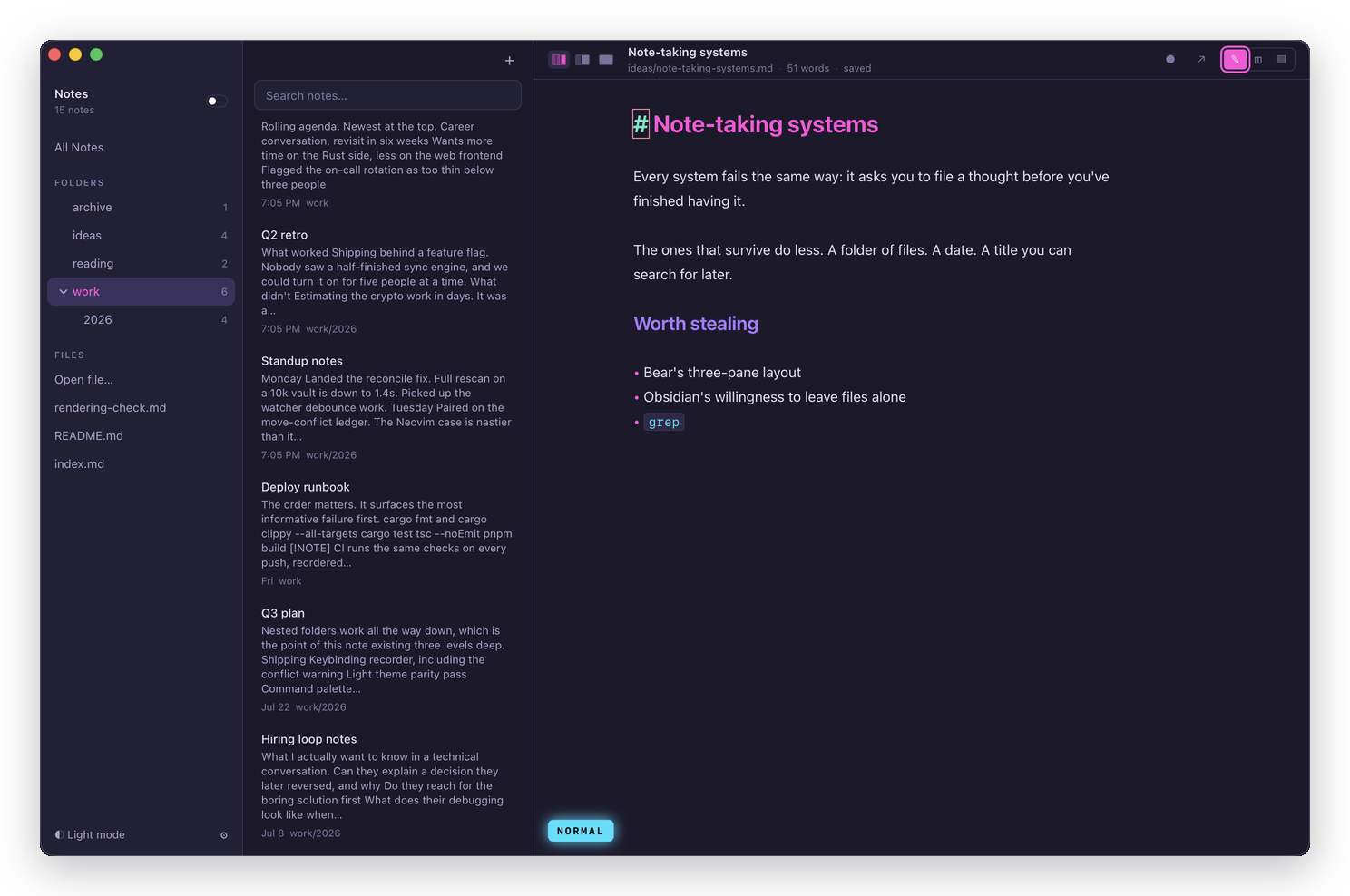
Click a folder in the sidebar to show only the notes under it. All Notes clears the scope, and so does :cd with no argument.
From the editor, :cd work/2026 scopes and :cd clears.
The command palette
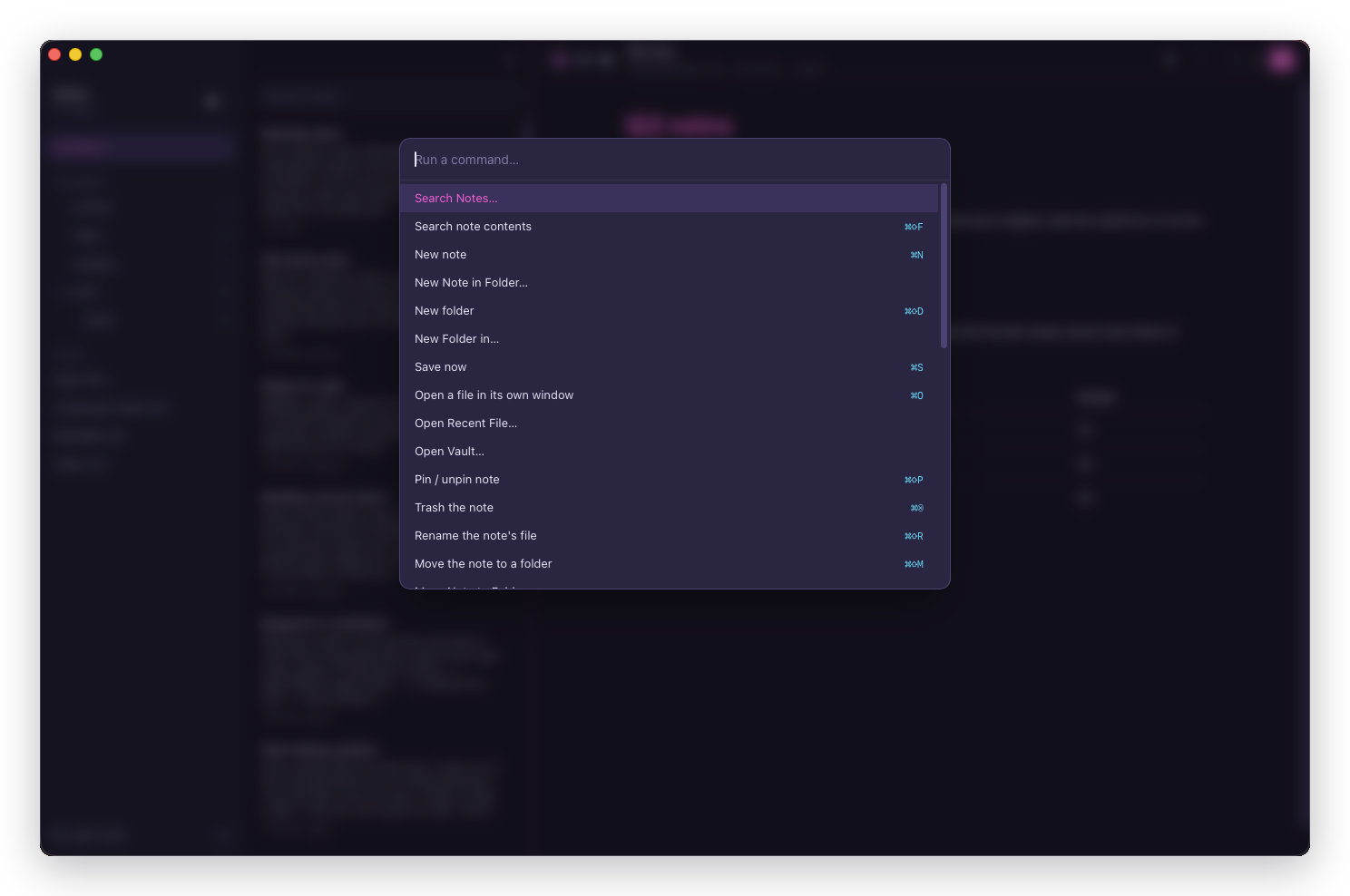
⌘K (or ⌘P) opens the palette. Type to filter, ↵ to run. Every command in the app is in here with its shortcut beside it, which makes it the fastest way to learn chords you don't know yet.
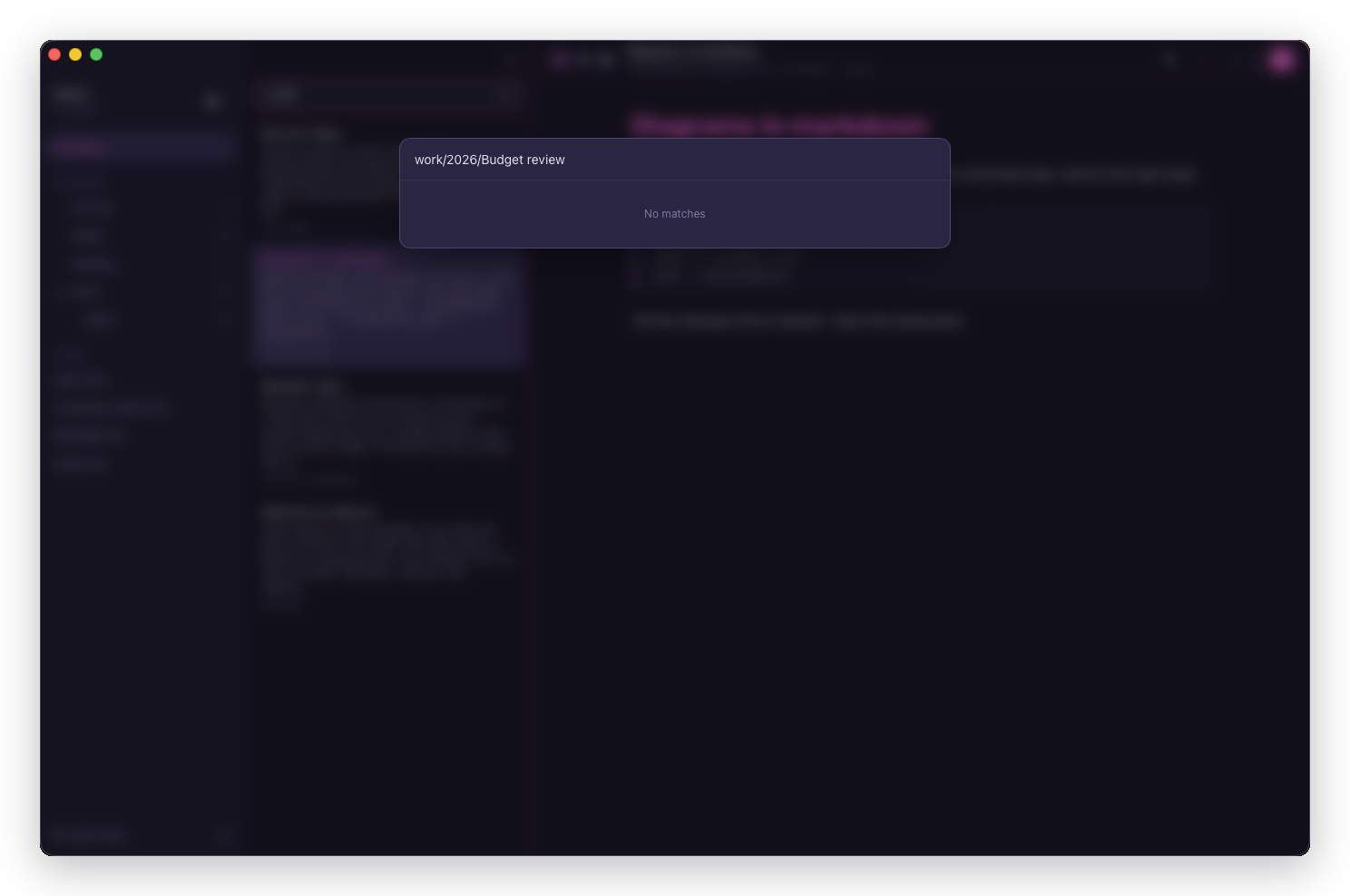
Some rows take an argument instead of running immediately. Selecting one puts you in that mode, with a chip naming it and a placeholder saying what it wants:
| Row | Then type |
|---|---|
| Search Notes | A title or path. ↵ opens the note |
| Find in Vault | A phrase. ↵ on a result opens the pane there |
| New Note | A title, or folder/Title to file it at the same time |
| Move Note to | A folder |
| New Folder in | A folder |
| Open Vault | A recent vault |
| Open Recent File | A recent file |
⌫ on an empty input backs out of a mode and returns you to the command list.
Commands that can't do anything right now are hidden rather than greyed out. The list is fuzzy-ranked, so a disabled row would still consume a ranking slot and ↵ would still land on it.
Why a note might not appear
The vault is still indexing. A large vault takes a moment on first open, and the list fills in as the scan lands.
It isn't a .md file. Halcyon indexes markdown and nothing else.
It's inside a skipped directory. The scan doesn't descend into dot-directories or node_modules, so markdown inside .git/, .obsidian/ or a dependency tree never enters the index. That's what makes pointing Halcyon at a code repository useful rather than overwhelming.
If a note is definitely there, definitely markdown, and still missing, the search index has fallen out of step with the folder. Quitting and reopening rescans it. Failing that, deleting the index forces a rebuild, which costs nothing but the rescan: see Where your files live.