Appearance
The editor
Markdown styles as you type, and the raw markers come back on whichever line the cursor sits on. You're always editing the characters that are actually in the file, never a rendering of them.
Put the cursor on a heading and the ## reappears. Move away and it styles again. Nothing is hidden from the line you're working on, which is the difference between this and a WYSIWYG editor that makes you guess what it wrote.
Three ways to look at a note
| Keys | View |
|---|---|
| ⌘E | Cycle edit → split → preview |
| ⌘⇧E | Turn rich markdown off, showing the raw source |
Split view puts the same buffer next to its rendered output:
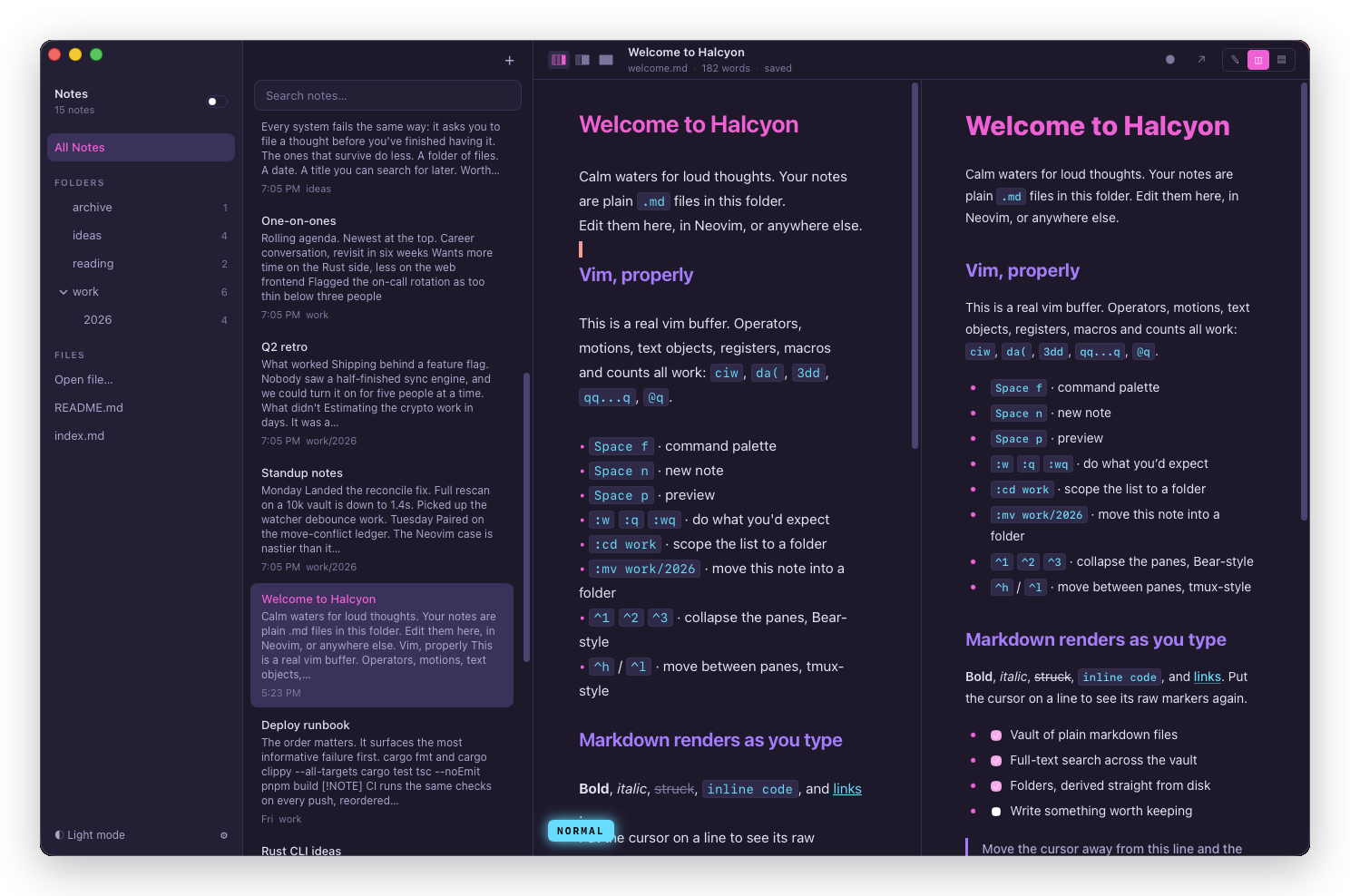
With vim on, :e, :sp and :view set the three modes directly, and <Space>e, <Space>v, <Space>p are the leader keys for them.
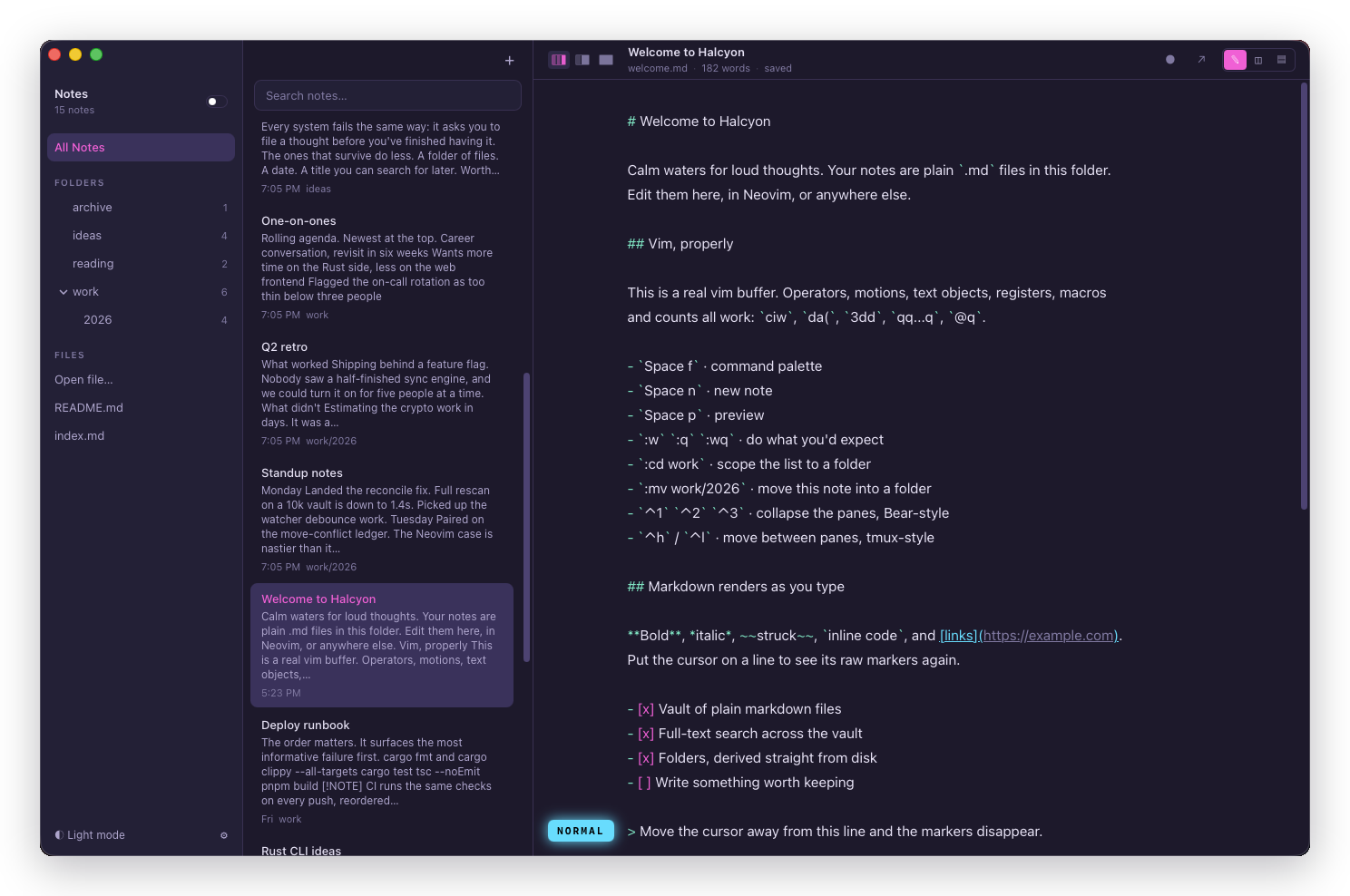
⌘⇧E turns rich markdown off entirely, showing the file exactly as it sits on disk. Still syntax highlighted, just no longer hiding anything:
Tip
That's worth knowing about for column work. Hidden markers take up no width, so a visual block spanning several lines is easier to aim when the source is showing. Settings → General has the same switch if you want rich markdown off for good.
Formatting
| Keys | Wraps the selection in |
|---|---|
| ⌘B | **bold** |
| ⌘I | _italic_ |
| ⌘⇧X | ~~strikethrough~~ |
| ⌘⇧K | A markdown link, with the cursor where the URL goes |
These belong to the editor rather than to the app, so they only fire with the editor focused and they can't be rebound in Settings.
Headings, the three list kinds, quotes, tables, callouts and code blocks have commands too. They're reached from a toolbar, a / menu and the Format menu rather than from chords: see Formatting.
With vim on, <Space>*, <Space>i and <Space>k are bold, italic and link from normal and visual mode, so you can select and wrap in one gesture. Bold is <Space>* rather than <Space>b because the asterisk is the marker it inserts, and b is backlinks.
:link takes the URL as an argument, which is where a URL wants to be typed:
:link https://example.comWith no argument it asks, exactly like ⌘⇧K.
Reading in preview
Preview scrolls under vim's own keys, so a long note reads without reaching for the mouse:
| Key | Moves |
|---|---|
j k | A line |
| ⌃d ⌃u | Half a screen |
| ⌃f ⌃b | A screen |
In the editor, j and k move by visual line rather than by logical line, so wrapped prose behaves the way it looks.
Saving
Halcyon saves on its own a beat after you stop typing. The delay is a slider in Settings → General, from 250ms to 3000ms, defaulting to 700ms.
⌘S saves immediately. So do :w, :wq, :x and <Space>s.
You don't need to save before switching notes, closing a window, or quitting. The pending edit is flushed first.
The vim mode badge
With vim on, the editor's footer shows the current mode. It's the fastest way to answer "why isn't this key doing anything", which is nearly always because you're in insert mode when you meant to be in normal.
Vim can be switched off entirely in Settings → General, and everything else in the app keeps working. See Vim.
What the editor does with an external edit
If a note changes on disk while you have it open, Halcyon notices. With no unsaved changes in your buffer, it adopts the new content silently. With unsaved changes, it refuses to discard your work and says so instead:
This note changed on disk. Save to overwriteYour edit is still in the editor. Saving writes it over the version on disk; closing the note without saving keeps the version on disk. Halcyon won't pick for you.
A note arriving from Sync behaves the same way, so there's only one thing to learn here.